How to Cast or Screen Mirror to the Washington Firehall Fire TV
First, connect your Windows10/11 PC or recent version Mac to the WVFR Hall WIFI network.
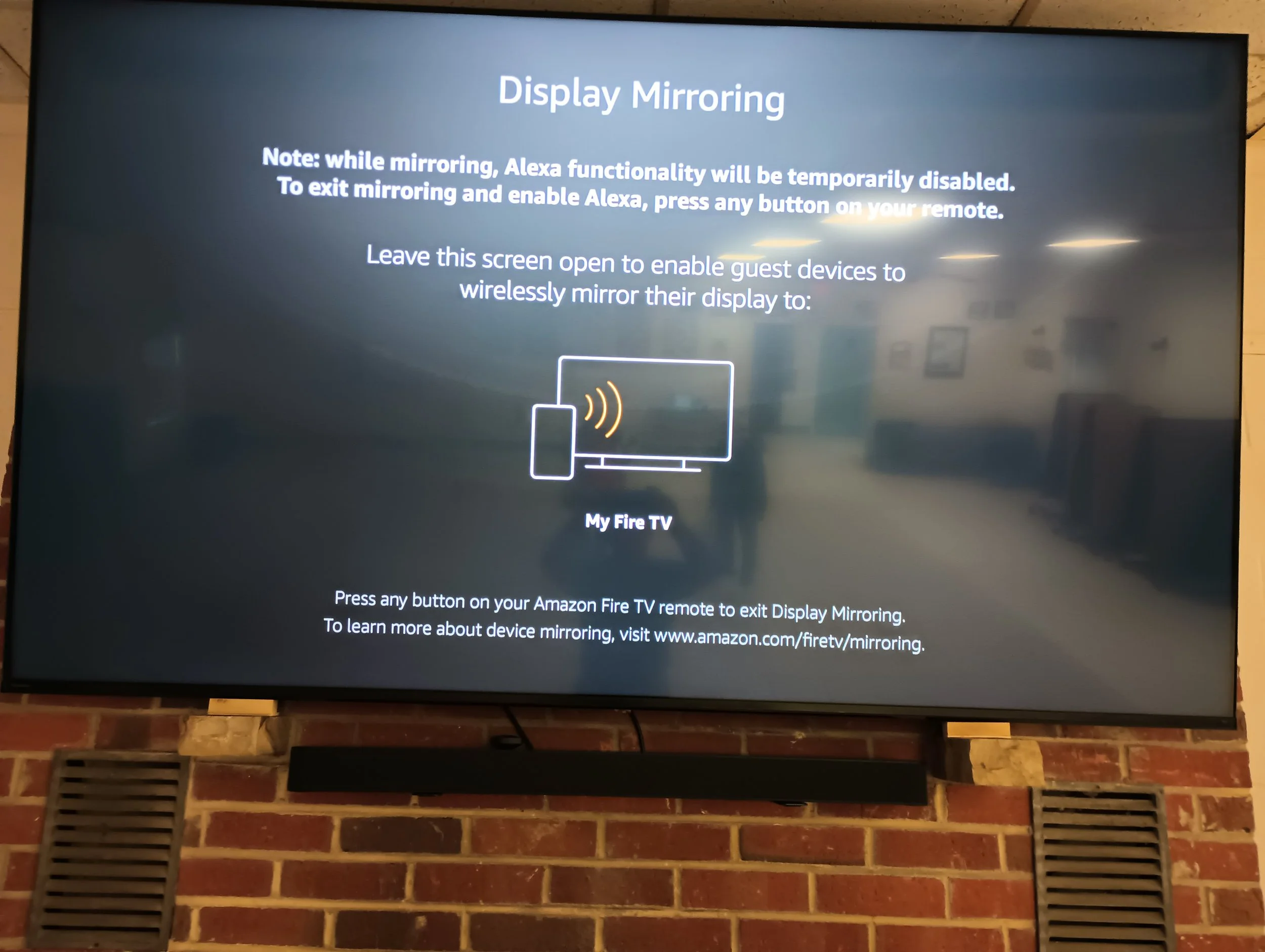
Turn on the Fire TV and select Settings on the screen or remote then pick Display Mirroring

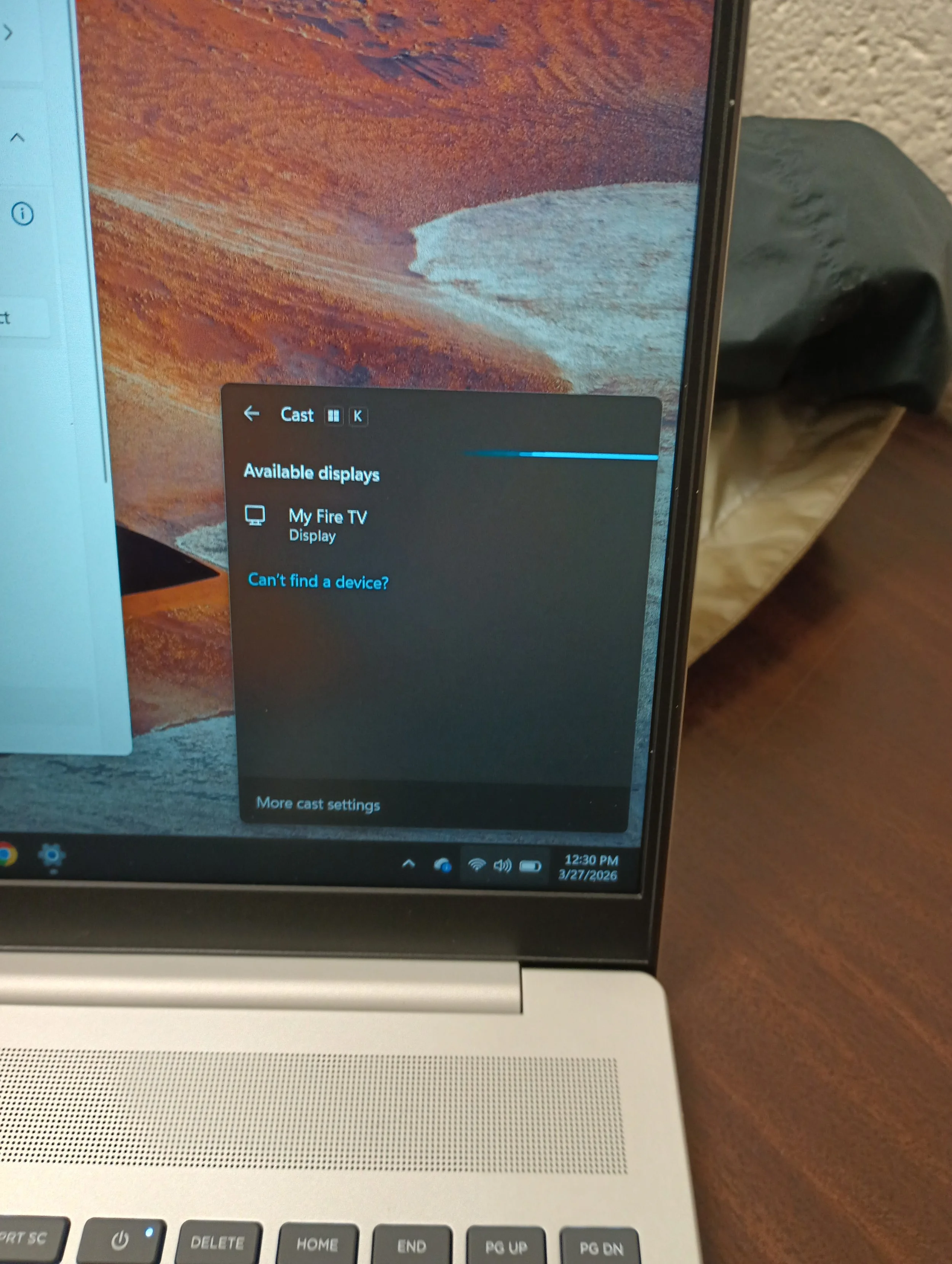
On Windows, press the Windows Key + K to open the Screen Cast Pop Up. Select My Fire TV.
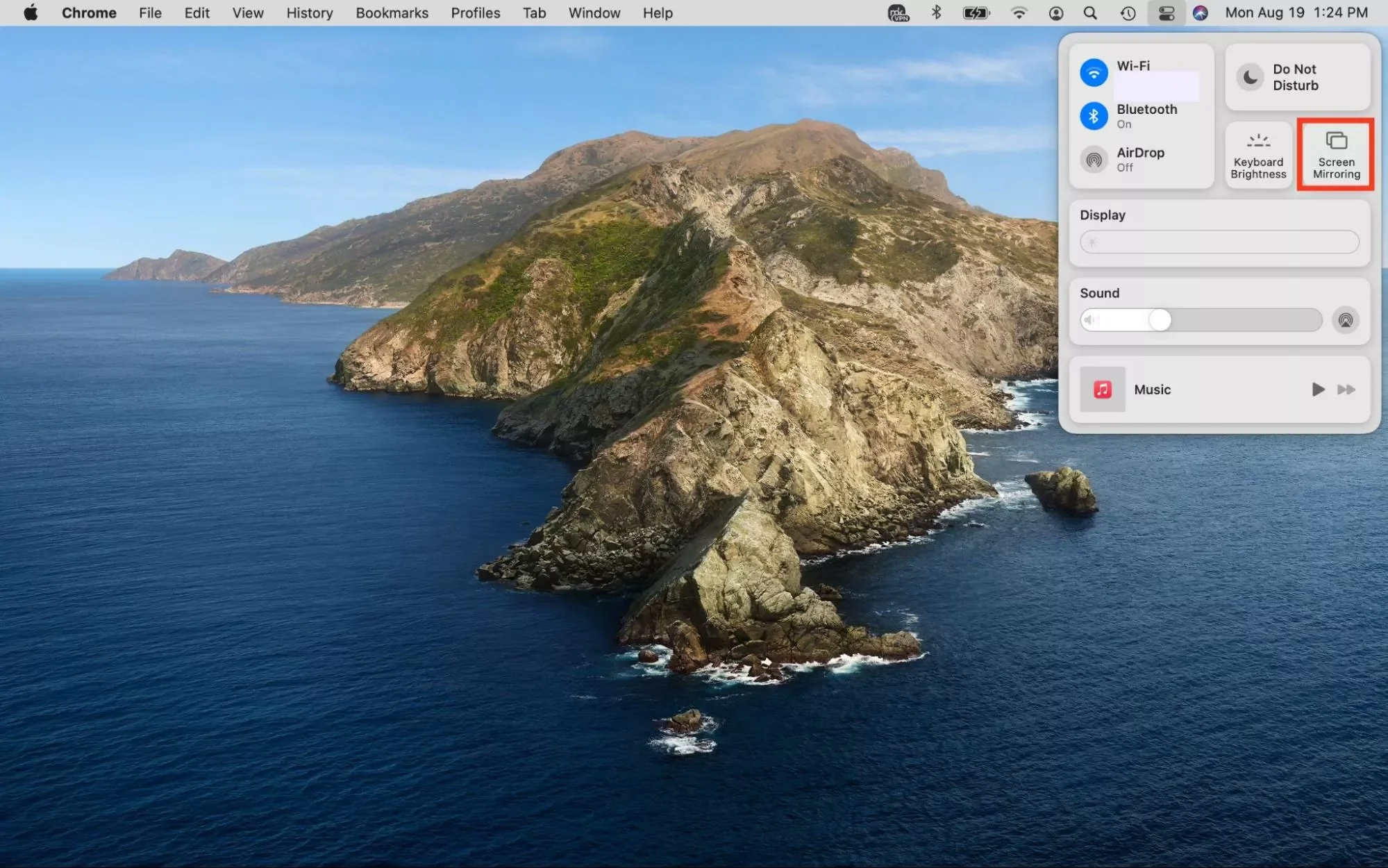
On a Mac, click on the Control Center Icon in the upper right corner to pick Screen Mirroring then select My Fire TV.
Set your PC or Mac to keep the display active when idle during the presentation (i.e. turn off automatic screen blanking in power or display settings.) Screen blanking may have different modes for plugged in vs battery operations. If the PC or Mac goes into screen blanking, the TV will disconnect and need to be reconnected.
Sound will also be sent to the TV when casting and should be audible from the TV’s soundbar. The TV turns on the soundbar when it is powered up. You may need to adjust the volume with either the soundbar’s remote or the TV’s remote.